

LiveTranslate
Foreign-language video, courses, meetings, even a conversation across the table,
captioned in your language about 2 seconds later.
An extension for your browser, an app for the whole Mac.
Extension 0.4.3 · Mac app 0.3.7 · 30 free minutes when you sign in · Pay once for hours, no subscription
Recorded as-is: a NASA video on YouTube, captioned in Chinese about 2 seconds behind. Drag the captions, resize them, and they follow you into fullscreen. (Footage: NASA, public domain)
Using the browser extension
- Open any page that plays sound: YouTube, online courses, web meetings, live streams
- Click the LiveTranslate icon and pick the language you want
- Press “Translate this tab”. Captions appear right away; press again to stop
Pick the version you need
Browser extension
Translates audio playing inside your browser: video sites, courses, live streams, web meetings. Click the icon to start.
Download the extensionChrome · Edge · Version 0.4.3 · ~30 KB
Parrovo for Mac
Translates audio from any app on your Mac, not just the browser. Captions float above every window and follow other apps into full screen. Switch to the microphone for a conversation across the table.
Download for MacmacOS 14.2 or later · Version 0.3.7 · ~3.4 MB · Notarized by Apple · Apple silicon and Intel
Both share one Alipay account and one pool of hours. Buy on either side and it works on the other.
Manual install
Can't reach the Chrome Web Store? Install it manually in a minute
Google Chrome
- Download the package with the button above
- Unzip it: double-click on macOS, or right-click → Extract All on Windows. You get a livetranslate folder
- Go to
chrome://extensions - Turn on Developer mode (top right)
- Click Load unpacked and choose that folder — not the .zip, and not a file inside it
- Click the puzzle icon in the toolbar and pin LiveTranslate
Microsoft Edge
- Download the package with the button above
- Unzip it; you get a livetranslate folder
- Go to
edge://extensionsand turn on Developer mode - Click Load unpacked and choose the unzipped folder, not the .zip
Other Chromium browsers work the same way. Keep the unzipped folder where it is (deleting or moving it removes the extension). Manual installs don't auto-update; download again from this page when there's a new version.
Installing the Mac app
- Open the disk image and drag Parrovo into your Applications folder, then launch it from there. Double-clicked straight from Downloads, macOS runs it from a read-only temporary location where its window cannot appear.
- The first time you start translating, macOS asks for permission to record system audio. Choose Allow.
- Parrovo also puts a shortcut in the menu bar, which you can turn off in its settings.
Features
60 languages
Detects the spoken language automatically and translates into any of 60.
~2 second delay
Powered by Qwen3.8-LiveTranslate, a simultaneous-interpretation model that translates while people speak.
Original + translation
Original in small type, translation in large. Handy for learners; can be turned off.
AI dubbing
Reads the translation aloud in 29 languages, in a voice you pick, and turns the original audio down.
Fullscreen-friendly
The caption box stays visible in fullscreen video players.
Pause = free
Paused or silent tabs send no audio and use no time.
The engine is Qwen3.8-LiveTranslate. Evaluated over 19 languages and 70 translation directions, it ranks first on all four measures (translation quality, latency, speech recognition and voice naturalness), ahead of Seed LiveInterpret 2.0, GPT-Realtime-Translate and Gemini 3.5 Live translate.
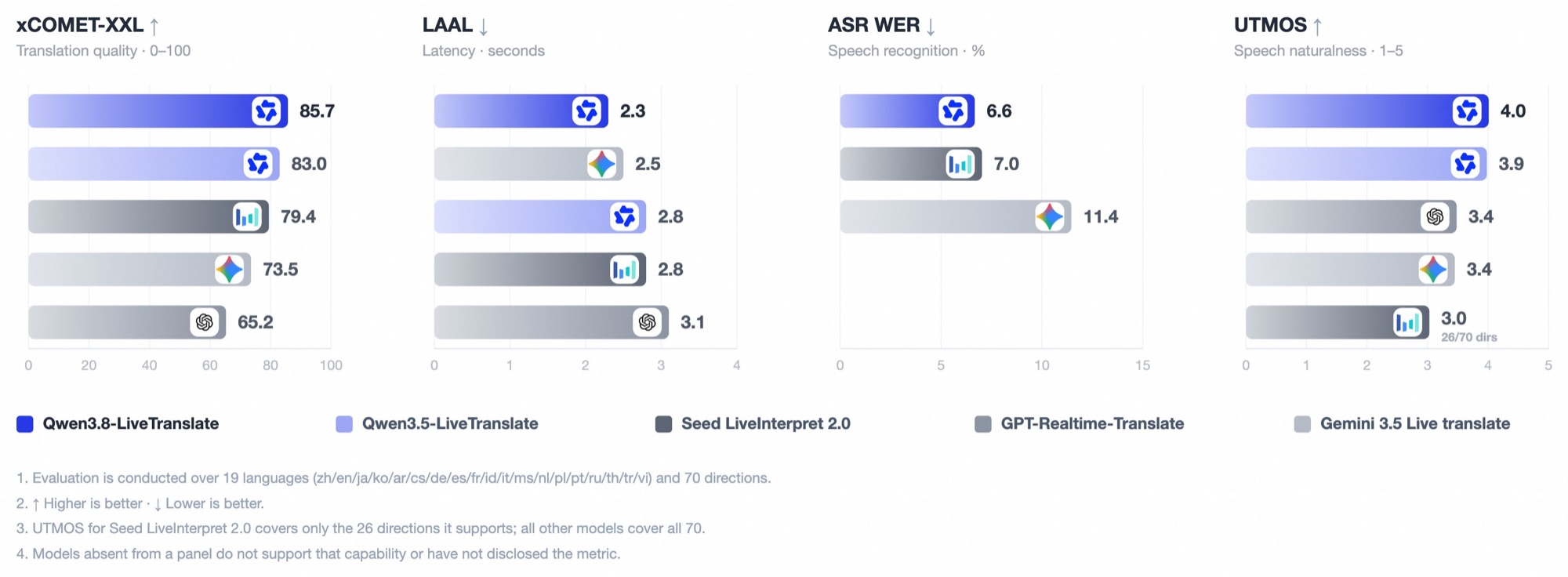
Translation quality (xCOMET-XXL) 85.7 · latency 2.3 s · recognition error 6.6% · voice naturalness 4.0/5. Results as published by the Qwen team. Click the chart for full size.
Pricing
5 minutes to try right away; signing in with Alipay tops your free time up to 30 minutes in total (once per account). Prices in RMB via Alipay, hours never expire, AI dubbing uses time 4× faster.
Privacy
Only the tab you switch on is ever listened to.
- No recordings, no stored transcripts or translations
- Doesn't read page content or browsing history
- No sign-up, no phone number
- Payments are handled by Alipay; we only see the order amount
FAQ
- What is the difference between the two?
- The browser extension only hears audio inside a browser tab, and takes one click to use. The Mac app captures audio from any app playing on the machine, not just the browser, and its captions float above every window. It can also switch to the microphone and interpret a conversation in front of you.
- Does it work with the Zoom or Teams desktop apps?
- Not the extension, which only hears a browser tab, so use the web version of the meeting. The Mac app does capture audio from apps on your machine. One caveat: a few apps do not hand their audio to the system capture interface. If you hit one, switch to ambient sound and let the microphone hear the speakers.
- Can it translate what I or the person opposite me says?
- The Mac app can. Choose ambient sound and it interprets a face-to-face conversation, with one click to swap the direction. Headphones are recommended; without them the microphone pauses while the translation is spoken, so it doesn't pick its own output back up. The browser extension still only translates audio played on a page.
- Which browsers, and what does the Mac app need?
- The extension supports Microsoft Edge, Google Chrome and other Chromium browsers, version 116 or later. The Mac app needs macOS 14.2 or later, on Apple silicon or Intel.
- Nothing happens when I double-click the Mac app?
- Almost always this means it was not moved into Applications. macOS runs a quarantined app from a read-only temporary location where its window cannot appear. Open the disk image, drag Parrovo onto the Applications folder beside it, and launch it from there.
- Chrome says “Proceed with caution: this extension is not trusted by Enhanced Safe Browsing”?
- Chrome shows this for every newly published developer, and only to people who have Enhanced Safe Browsing turned on. It doesn't mean anything is wrong with the extension, and it goes away on its own once the developer has been in good standing for a few months. Click “Continue to install”.
- Are hours separate between the extension and the Mac app?
- No, both draw on the same pool. Once you've paid or signed in with Alipay, your hours belong to that Alipay account. Reinstall, switch computers, or move between the extension and the Mac app, sign in with the same account, and they're all there.